Introduction
You can access Copilot in two ways, depending on where you are in the portal. Before LLM configuration, Copilot is visible but disabled, displaying the message:
“Copilot (Disabled Configure LLM credentials)"
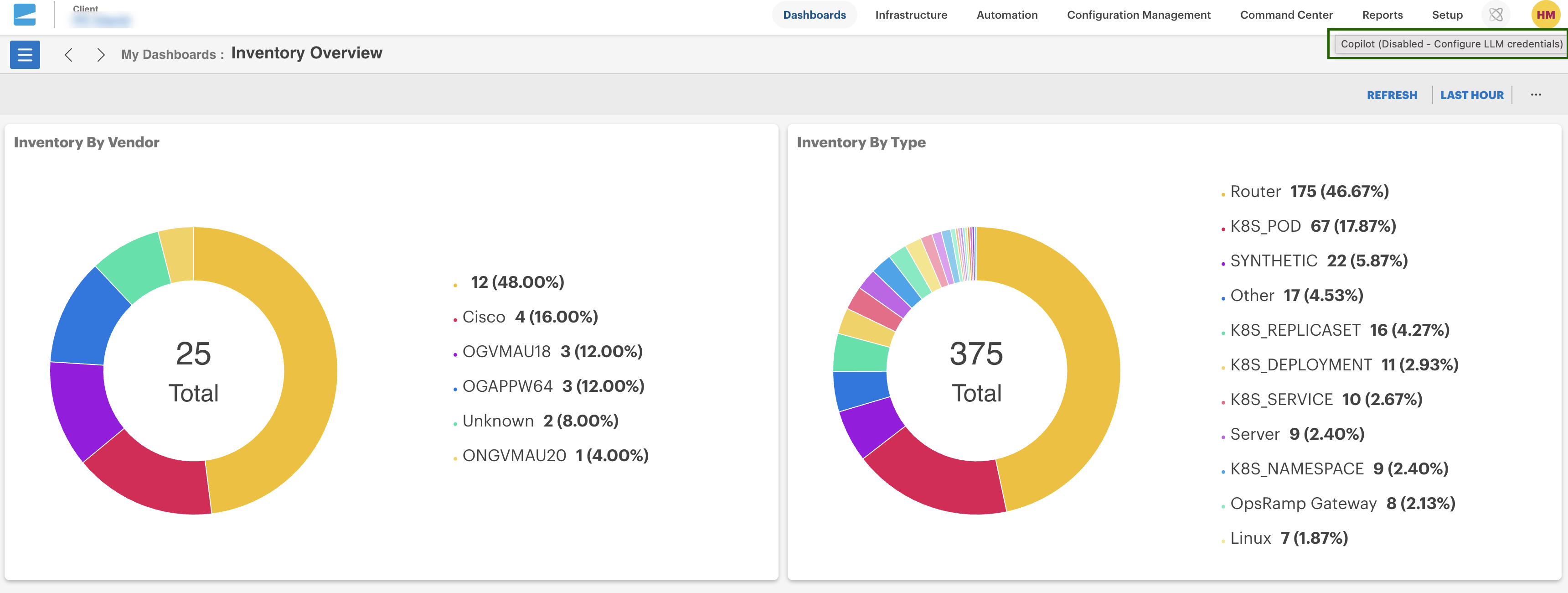
To enable Copilot, follow the setup steps in the “Bring Your Own LLM/Key (BYO-LLM)” section below.
Option 1 - From the Home Page
On the Home page, the Copilot icon appears on the top-right corner of the portal.
- If LLM credentials are not configured, clicking the icon displays a disabled message indicating that Copilot requires configuration.
- After setup, clicking the icon opens the fully functional Copilot panel.
Option 2 From Any Supported Area
You can open Copilot from any supported feature, such as:
- Search
- Command Center (Alerts)
The Copilot icon appears in the top-right corner on these pages as well.
- If credentials are already configured, Copilot opens in active mode with the context of the page you’re viewing.
Note
Copilot appears even before BYO-LLM setup but remains disabled until credentials are added.Channels (How Copilot focuses your query)
Copilot uses channels to determine how it should interpret your question and which data sources to use.
Writing effective questions
To get the best results from Copilot:
Describe your goal:
- “Explain why this Alert is firing.”
Mention what you’re looking at:
- “I’m on alert 122276058.”
Add a time range when useful:
- “Show metrics for the last 4 hours.”
- “Compare behavior from 06:00–10:00 UTC yesterday.”
Use follow-ups to refine:
- “Show metrics for the impacted VM too.”
- “Check if related alerts exist on this resource.”
Copilot maintains conversational context, so you can continue asking follow-up questions naturally.