A Major Gateway Appliance Upgrade involves completely replacing your existing Gateway appliance with a new appliance that comes pre-installed with the latest operating system (OS), patches, and Gateway software versions. This upgrade approach is often necessary when:
- When your gateway is no longer supported by OpsRamp like below N-2 version.
- The current Gateway OS (e.g., Ubuntu) has reached its End of Life (EOL), meaning it no longer receives security updates or support.
This process is a clean-slate upgrade, meaning instead of applying patches or incremental updates on the existing appliance, you deploy a fresh Gateway environment and migrate your configuration and monitoring data to it. This approach helps maintain system stability, performance, and security over time.
This guide provides a clear, step-by-step process for updating your Gateway Appliance firmware, specifically for users leveraging OpsRamp ISO or OVA deployments. The Gateway Appliance acts as a crucial component in your infrastructure, facilitating monitoring and communication with managed resources.
Note
- Gateway Appliance Upgrade cannot be applied directly to the existing Gateway. Instead, a new Gateway appliance must be deployed with the updated firmware, and then traffic must be switched over.
- If an existing Gateway has triggered a CRITICAL or WARNING alert that resolves during migration, the new Gateway may not trigger a recovery alert immediately. This is because the new Gateway begins monitoring in an OK state while the resource remains flagged on the old Gateway. The new Gateway will send a new alert appended to the existing one.
Prerequisite
Before you begin the update process, please ensure the following:
Supported Gateway Model:
Confirm your current Gateway appliance model is one of the supported types, such as:- ONGVMAU20
- ONGVMAU22
Backup Configuration Details:
Document your existing Gateway’s configuration to facilitate smooth migration and redeployment. Save the following information: Before upgrading, it is critical to document your existing Gateway appliance configuration to ensure a smooth and accurate migration to the new appliance. Please save the following information carefully:- CPU Allocation: Number of CPU cores assigned to each node in your Gateway cluster.
- Memory Allocation: Amount of memory allocated to each node and each namespace (if namespaces are in use).
- Storage Details: Disk size and the datastore name currently used by the Gateway appliance.
- Network Configuration:
- IP address and hostname of each Gateway node.
- Load balancer IP addresses associated with each Gateway.
- Important: If you use a range of load balancer IPs, note that these IPs may change when migrating to the new Gateway appliance. Plan accordingly to update any relevant configurations or firewall rules.
- Proxy Configuration: Any proxy settings configured for each Gateway appliance.
Maintaining an accurate record of these settings will help you recreate the new Gateway environment to match the existing deployment closely, minimizing downtime and configuration errors.
- Access Credentials:
Ensure you have SSH credentials for your Gateway nodes. If not, contact OpsRamp Support for default credentials.
Upgrade Procedure
Step 1: Retrieve Current Gateway Configuration
- SSH into any node within your Gateway cluster using your SSH credentials.
- List nodes by running:
kubectl get node -o wide
- List namespaces (if applicable):
kubectl get namespaces
- List load balancer external IP addresses:
kubectl get svc -A
- Log out after collecting all necessary data.
Step 2: Download the Latest Gateway ISO/OVA
Log in to the OpsRamp portal to download the latest Gateway installation files.
- For ISO
- For OVA
Step 3: Detach the Existing Gateway
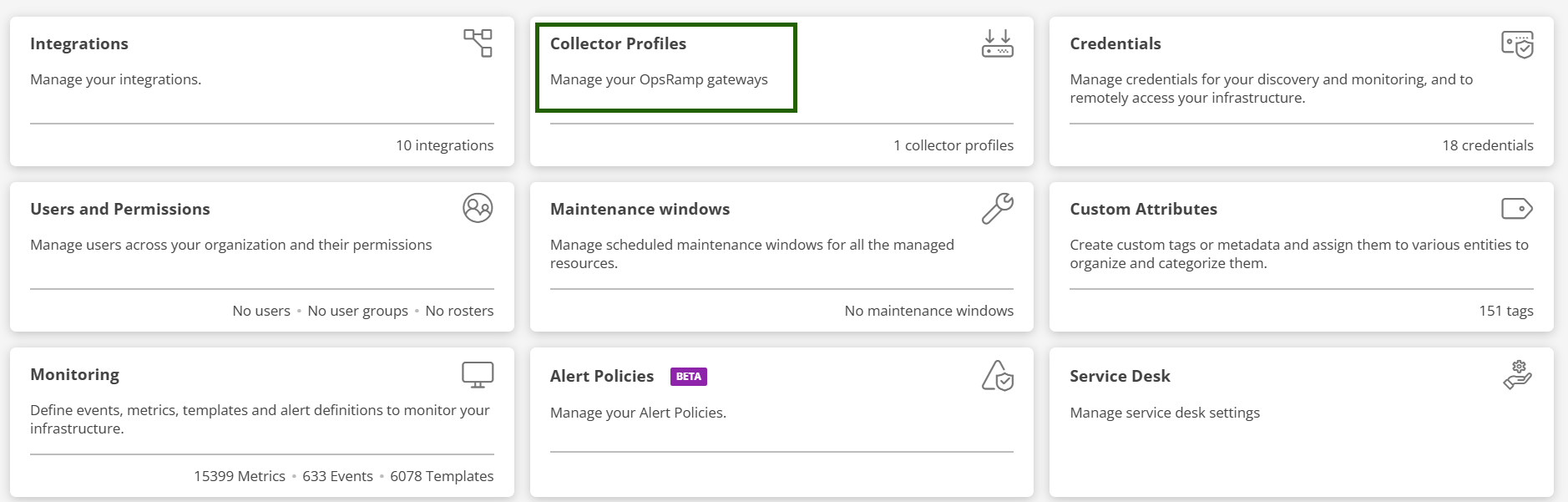
- Navigate to Setup > Account > Collector Profiles in the OpsRamp console.
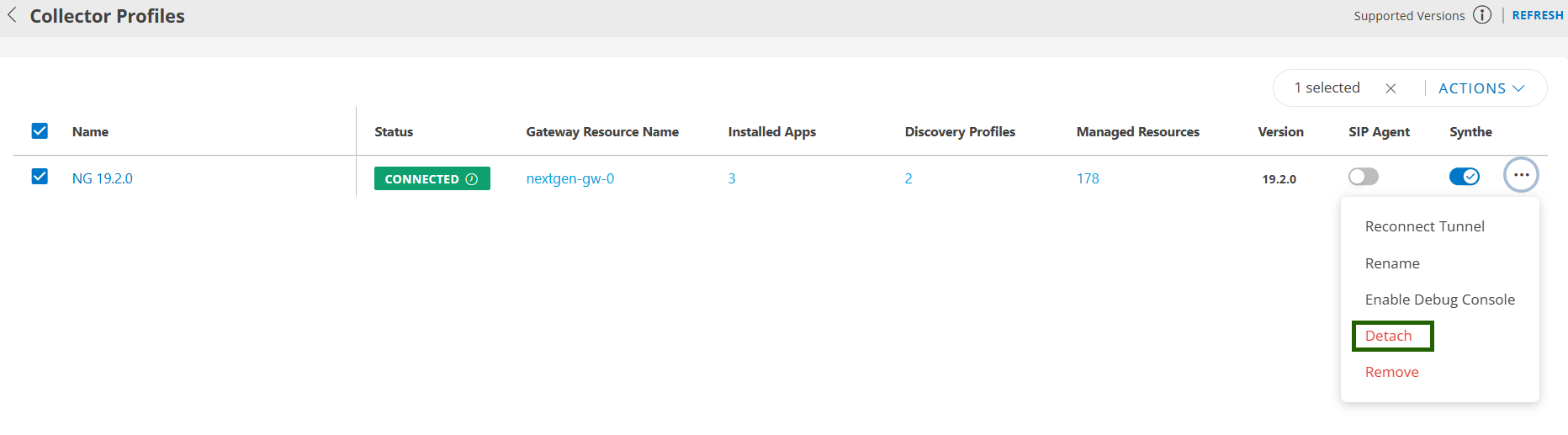
- Select the collector profile associated with the Gateway you want to replace and click Detach Gateway.
- On the Infrastructure page, ensure no device uses the same IP address as the current Gateway. Remove duplicates if found.
- Shut down all nodes in the Gateway cluster.
Step 4: Deploy the New Virtual Appliance
- Using the same resource config, deploy equal number of VMs for the gateway appliance.
- Allocate CPU, memory, disk space, and network settings identical to the previous Gateway to maintain performance and compatibility.
Step 5: Attach the New Gateway
- In OpsRamp, navigate to Setup > Account > Collector Profiles.
- Select the Collector profile from which you detached the old Gateway.
- Click Attach Gateway and then Copy the activation code to your clipboard.
Step 6: Configure the New Gateway
- Register the new Gateway using the bootstrap tool with the copied activation code.
- Refer the Registration Document to register the new Gateway using the bootstrap tool.
Step 7: Verify the Upgrade
Confirm the new Gateway is functioning properly by checking the following:
- Gateway status shows Connected under the Collector Profile Status.
- Under Registration Details, verify the Gateway model ID begins with ONG (e.g., ONGVMAU22).
- Confirm the firmware version reflects the latest update.
- Wait
5–10minutes, then check monitoring graphs for the Gateway and managed devices. - If the Gateway acts as a proxy for Agents, ensure Agents are active and reporting data.
- For Gateways monitoring verify recent data is being collected correctly.
- For Gateway connected resource monitoring verify recent data is being collected correctly.